
Do I Need a Wireless Adapter for My Gaming PC: A Complete Guide
A gaming PC needs a Wi-Fi adapter only when it needs a wireless connection and does not already have working Wi-Fi built in. Your desktop might already connect wirelessly, or it might use Ethernet, a wired network connection. Latency is the time it takes for data to travel from your PC to a game server and back. A new adapter can help if your existing Wi-Fi hardware is weak or outdated, but it cannot fix every cause of lag. This guide helps you check what your PC can do and choose a practical connection for gaming.
Key Takeaways
- You need wireless hardware only when you want Wi-Fi and your PC lacks suitable built-in Wi-Fi.
- Ethernet can connect your gaming desktop without any Wi-Fi adapter.
- A new adapter may help when the PC’s wireless hardware is the weak link.
- Your router, signal, internet provider, and game server can also affect online play.
- Match an adapter’s connection type and Wi-Fi features to your PC and router.
If Ethernet is practical and dependable where the PC sits, you can skip buying Wi-Fi hardware.
Do I Need a Wireless Adapter for My Gaming PC?
You can skip a separate adapter if your PC already has working Wi-Fi or connects to the router through Ethernet. You need new wireless hardware only when you want Wi-Fi and your computer lacks it or its current connection is inadequate.
A desktop may have Wi-Fi built into its motherboard, even if you did not install a separate card. A PC with built-in wireless can join a Wi-Fi network without another device. If that connection works reliably where you play, buying another adapter may not improve anything.
Choose an adapter only when wireless access is needed and the PC’s existing wireless hardware cannot meet your needs. If your desktop uses Ethernet, it already has a network connection. Ethernet does not need a Wi-Fi adapter, and you can keep using it if the cable reaches comfortably.
Buy an adapter only after confirming that your current connection cannot meet the way you use the PC.
A replacement can make sense when older wireless hardware struggles to connect to your router or loses a usable signal. An upgrade is not automatically worthwhile because a newer Wi-Fi generation exists. Your router and the location of the computer affect which features you can actually use.
For example, a PC that lacks Wi-Fi needs an adapter if you want to place it where Ethernet is impractical. A PC with suitable built-in Wi-Fi does not need one just because gaming is its main use. The right choice depends on the connection you need, not the label on the desktop.
Before spending money, consider whether your current connection serves your games, downloads, and other devices well. A faster connection may matter for large downloads, while steady gameplay depends on more than a speed rating. Buy an adapter only after confirming that your current connection cannot meet the way you use the PC.
https://www.youtube.com/watch?v=sTraGEFB38I
How Can You Check Whether Your PC Already Has Wi-Fi?
Before spending money, check whether Windows already lists wireless hardware in Device Manager. On Windows 11, expand Network adapters to see the network hardware installed in your computer.
A wireless or Wi-Fi entry under Network adapters is the clearest quick sign that your PC has wireless hardware. The entry might include a manufacturer or product name rather than the word “Wi-Fi.” A list containing only Ethernet hardware does not confirm that wireless connectivity is available.
Use this short check in Windows 11:
- Open Device Manager from the Start menu search.
- Expand Network adapters to show the installed network hardware.
- Look for an entry that says wireless or Wi-Fi.
- Check the motherboard specifications if the listing is unclear.
A desktop’s motherboard specifications offer another clue. Find the exact motherboard model and check its connectivity details. Some motherboards include wireless networking, while others provide only Ethernet. Antenna connectors on the back of the desktop can also suggest that built-in Wi-Fi is present.
Antenna connectors are useful clues, but they are not as clear as checking Windows or the motherboard specifications. Some computers use separate antennas, and a desktop’s appearance alone does not prove which network features it has. If Device Manager shows an unclear name, search the exact motherboard model in its product documentation.
Network adapters can also appear in Device Manager when Windows cannot use them normally. A missing wireless entry might mean your PC lacks the hardware, or that the device is disabled or not recognized. Check the motherboard model before deciding that an adapter is the only option.
The motherboard’s product name is usually printed on the board or shown in system information. Match the full model name, including any letters or numbers at the end, because similar versions may have different connectivity. If the entry is missing or unclear, confirm the motherboard model before choosing an upgrade.
What Can a Wi-Fi Adapter Fix, and What Can’t It?
A new adapter can improve a weak or outdated PC wireless connection, but it cannot fix every source of lag. It helps most when the computer’s own wireless hardware is the weak link.
A faster adapter cannot fix an internet provider outage, a struggling game server, or congestion shared across the router. Those problems affect the path beyond the PC’s wireless hardware. Replacing a computer component does not clear a slowdown caused elsewhere in the connection.
A new adapter can help when the current one is old, unreliable, or poorly suited to the router. For example, the PC might drop its Wi-Fi connection while other equipment works normally. In that case, a better adapter may improve the PC’s access to the home network.
Keep the difference between the local wireless connection and internet access in mind. The adapter connects your PC to the router, while the router handles traffic between your home network and the wider internet. A good connection to the router cannot make a distant server respond faster.
A speed test may help you spot a slow connection, but a single result does not identify the cause. Compare the gaming PC with another device using the same network. If one computer struggles while the other works normally, the PC’s adapter or its connection deserves closer attention.
When several devices slow down at the same time, the issue may involve the router, internet provider, or network congestion. A new adapter will not restore internet service during an outage. It also cannot solve a game server problem affecting players beyond your home network.
Look for a pattern before replacing hardware: a problem limited to one PC points toward its wireless connection, while shared trouble points elsewhere. If other devices have the same slowdown at the same time, investigate the shared connection before replacing PC hardware.
Which Adapter Type Fits a Gaming PC?
A USB adapter is the simplest add-on, while PCIe and M.2 require a compatible internal connection. The best fit depends on your computer’s available ports or slots and how much installation work you want to do.
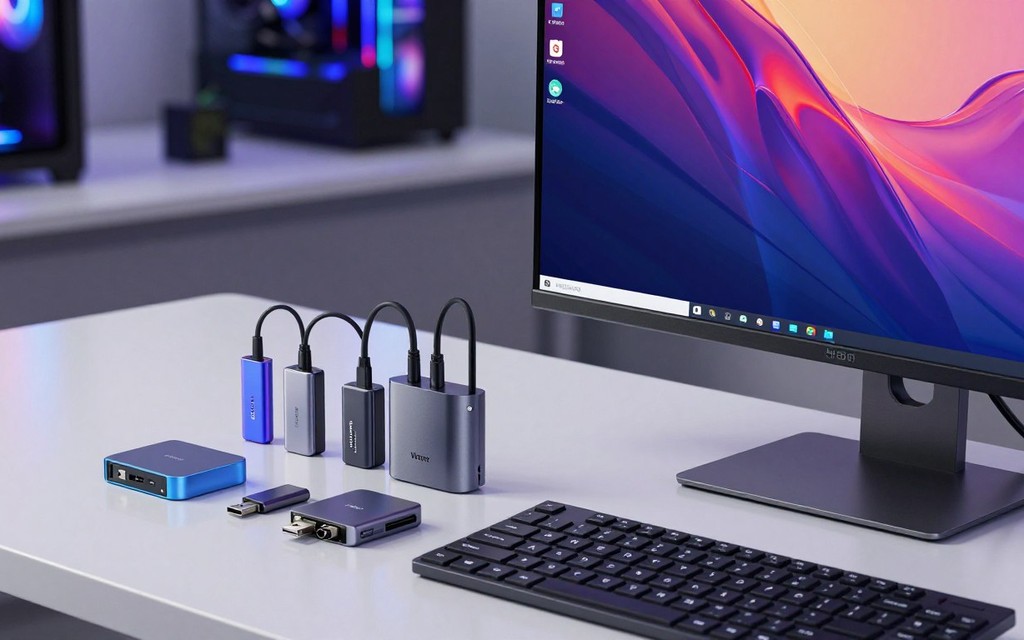
A desktop that already has motherboard Wi-Fi needs no add-on unless that connection is inadequate. For a PC without suitable wireless hardware, compare the connection each adapter type uses before buying. The table shows the basic differences.
Choose a type that matches the computer’s actual connection, not just the adapter’s listed features. A USB device is easy to move, while an internal card stays in the computer. M.2 hardware is only useful when the PC has a compatible socket and card.
| Adapter type | Connection to PC | Installation consideration | Typical fit |
|---|---|---|---|
| USB | USB port | Easiest to add or move between devices | Simple upgrade |
| PCIe | Compatible desktop expansion slot | Open desktop and use a free slot | Fixed desktop setup |
| M.2 | Compatible M.2 socket | Socket and card must match | Supported laptops or motherboards |
USB adapters connect through a USB port, so they suit people who prefer not to open a desktop. A PCIe card fits inside a desktop and needs an available expansion slot. M.2 adapters also install internally, but they require the right socket and compatible card.
Some PCIe Wi-Fi adapters provide Bluetooth through a cable connected to an internal USB header. That extra connection is separate from the card’s PCIe slot. Check whether the feature matters to you and whether your motherboard has the header the card needs.
There is no reason to choose an internal card if opening the computer is a poor fit for your setup. On the other hand, a USB adapter can occupy a port you use for other devices. Check the exact slot or port available in your PC before buying an adapter.
Can a USB Port Limit Wi-Fi Adapter Performance?
A fast wireless adapter can still be held back by the connection between the adapter and the PC. The USB port matters when its transfer limit falls below what the wireless hardware can deliver.
USB 2.0 may bottleneck a high-speed Wi-Fi adapter, while USB 3.0 supports transfers up to about 5 Gbps. PCIe avoids a USB-port bottleneck, but the adapter, router, and wireless signal still affect its performance.
These interfaces connect a wireless device to a PC in different ways:
| PC interface | Connection detail | Speed or bottleneck consideration |
|---|---|---|
| USB 2.0 | USB port | May bottleneck a high-speed adapter |
| USB 3.0 | USB port | Transfers up to about 5 Gbps |
| PCIe | Internal expansion slot | Avoids USB-port bottleneck; adapter, router, and signal still matter |
An adapter’s advertised wireless rate is not the same as the speed its PC connection can carry. The wireless rating describes a capability under supported conditions. The USB or PCIe connection is another part of the path between your router and computer.
For example, a high-rated USB adapter plugged into an older USB 2.0 port may not reach its full potential. That does not mean every USB adapter needs a newer port. Check the adapter’s connection requirements and the ports available on your computer.
A USB 3.0 port’s stated transfer capacity is not a promise of matching internet speed. Router capability and signal quality still shape the wireless connection. PCIe removes the USB port from the equation, but it cannot make an older router or weak signal perform better.
Also check the shape and location of the port before connecting an adapter. A nearby cable or case may make one port easier to use than another. Plug a high-speed USB adapter into a USB 3.0 port when the device requires that interface for its full performance.
Which Wi-Fi Standard and Band Should a Gaming PC Use?
Choose the Wi-Fi generation by matching the adapter to your router and the wireless features you will actually use. A 5 GHz adapter for a PC must support 5 GHz, and the router must offer that band.
The newest Wi-Fi standard is not automatically necessary for online gaming. A suitable adapter can provide a solid connection if its features match the router and the PC’s location. Paying for features your router cannot use may not help your setup.
These standards support different frequency bands:
| Standard | Supported bands | Practical distinction |
|---|---|---|
| Wi-Fi 6 | 2.4 GHz and 5 GHz | Does not add 6 GHz |
| Wi-Fi 6E | 2.4 GHz, 5 GHz, and 6 GHz | Adds 6 GHz support |
| Wi-Fi 7 | 2.4 GHz, 5 GHz, and 6 GHz | Supports all three listed bands |
For gaming, 5 GHz is a useful option when your PC is within reasonable reach of the router. It offers another band choice alongside 2.4 GHz, though the connection still depends on the equipment and surroundings. The band alone does not guarantee a better experience.
Wi-Fi 6 uses the 2.4 GHz and 5 GHz bands. Wi-Fi 6E adds the 6 GHz band, and Wi-Fi 7 supports 2.4 GHz, 5 GHz, and 6 GHz. Your router and adapter must both support a feature for the PC to use it.
If you are choosing a Wi-Fi adapter for a PC on 5 GHz, check that the adapter supports that band. The router must also offer 5 GHz for the two devices to connect there. A PC and router can use other supported features without requiring the newest generation.
Think about what your router supports before paying for a higher standard. An adapter does not add a band or feature that the router lacks. A compatible Wi-Fi 6 or 6E adapter can be a better fit than paying for Wi-Fi 7 that the router cannot use.
Does 6 GHz Improve Gaming Range and Reliability?
6 GHz can offer a useful wireless option, but it does not reach as far through a home as 5 GHz. Its shorter effective range can make 5 GHz the more practical choice at a distant gaming desk.
6 GHz loses more signal through walls and other obstacles than 5 GHz. A newer band does not guarantee a stronger or more reliable connection at every PC location. The right choice depends on how well the signal reaches the desk.
When 5 GHz Is the Practical Choice
Choose 5 GHz when distance or walls make the 6 GHz signal less dependable. A PC in another room may have a more usable connection on 5 GHz, even if its adapter supports a newer band. The connection that stays reliable matters more than the band name.
A wall or floor between the router and PC can change how each band performs. If the computer sits far from the router, test the band that gives it a steady connection. A weak signal can interrupt play regardless of the adapter’s advertised features.
When 6 GHz Can Help
6 GHz can be useful when the PC is relatively close to a compatible router and the environment benefits from another band. It gives you another supported wireless option, but the computer and router must both have 6 GHz capability.
Distance still matters even with compatible equipment. A nearby PC may use 6 GHz well, while a farther gaming desk could get a more dependable connection on 5 GHz. Choose the band that gives the PC a reliable signal at its actual location, not the one with the biggest number in its name.
How Should You Match a Wi-Fi Adapter to Your Router?
Your router sets the ceiling for the Wi-Fi features and speed the PC can use. The best internet adapter for PC gaming must support the router’s available generation and bands, but matching features does not promise a perfect signal.
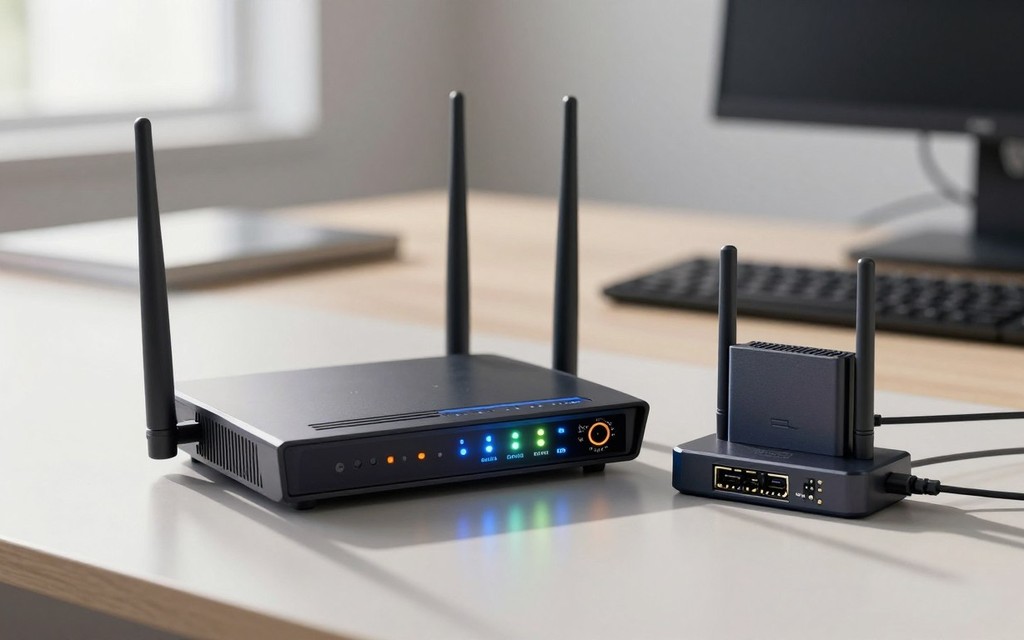
A newer adapter does not make an older router faster. A Wi-Fi adapter can operate only up to the speed supported by its connection to the router. Wi-Fi generations are backward compatible, but both pieces of equipment need a feature to use it.
Backward compatibility lets newer and older Wi-Fi generations connect when they support a shared mode. The older router still limits the features available to the PC. The adapter cannot provide a band that the router does not offer, even if the adapter supports it.
Check the router’s product information or its management settings for its Wi-Fi generation and bands. Then compare those details with the adapter’s supported features. A router with 2.4 GHz and 5 GHz support cannot provide 6 GHz to an adapter, for example.
Use this checklist before choosing an adapter:
- Identify the router’s Wi-Fi generation.
- Confirm which bands the router offers.
- Check that the adapter supports those bands.
- Consider the distance and obstacles between PC and router.
The router and adapter are only part of the wireless path. A nearby PC with a clear signal may connect differently from a desktop across several rooms. The same adapter can behave differently when the computer moves to another location.
Check your actual router model rather than relying on a general product description. Some router names cover more than one version, and the model number helps identify its capabilities. Match the adapter to the router you own now, unless you have a concrete plan to upgrade the router too.
Which Wi-Fi Adapter Models Fit Different Gaming Setups?
Among the PCIe adapters with listed tests, the MSI Herald BE posts the highest close-range and 25-foot 6 GHz results. The measured throughput offers a useful comparison, not a guarantee of gaming speed.
The MSI Herald BE is the fastest tested PCIe option in these listed 6 GHz results, while the Cudy AX3000 has the lowest listed PCIe price. In 2026, their listed prices were $49.99 and $26, respectively.
Best PCIe Pick for Gaming and a Lower-Cost PCIe Option
The MSI Herald BE supports Wi-Fi 7 on 2.4 GHz, 5 GHz, and 6 GHz, with a theoretical maximum of 5.8 Gbps. It includes a 2.5-foot antenna cable and a USB cable for Bluetooth 5.4. The Gigabyte GC-WBAX210 supports the same three listed bands, with a 2.4 Gbps maximum speed rating.
| Model | Interface | Test condition and band | Close-range result | 25-foot result |
|---|---|---|---|---|
| MSI Herald BE | PCIe | Uncongested iPerf3, 6 GHz | 2,830 Mbps | 2,730 Mbps |
| Gigabyte GC-WBAX210 | PCIe | Uncongested iPerf3, 6 GHz | 1,870 Mbps | 1,696 Mbps |
| MSI AXE5400 | USB | Uncongested iPerf3, 6 GHz | 1,350 Mbps | 1,183 Mbps |
| Cudy AX3000 | PCIe | Uncongested iPerf3, 5 GHz | 1,363 Mbps | 823 Mbps |
The MSI Herald BE recorded 2,566 Mbps close and 2,060 Mbps at 25 feet in congested 6 GHz iPerf3 tests. The Gigabyte GC-WBAX210 reached 1,500 Mbps close and 1,163 Mbps at 25 feet in congested 6 GHz tests. The Cudy AX3000 uses an Intel AX200 Wi-Fi chip.
USB Options for Convenience and Wi-Fi 7
The MSI AXE5400 Wi-Fi 6E USB adapter lists at $51 and includes a 2.5-foot USB cable for flexible positioning. Its measured 6 GHz results were 1,350 Mbps close and 1,183 Mbps at 25 feet, uncongested. Congested tests reached 1,320 Mbps close and 1,260 Mbps at 25 feet.
The TP-Link Archer TXE5400UH rates 2,402 Mbps on both 5 GHz and 6 GHz, plus 574 Mbps on 2.4 GHz. The Archer TBE6500UH rates 2,882 Mbps on both 5 GHz and 6 GHz, plus 688 Mbps on 2.4 GHz. Both use USB 3.0 and support Windows only.
The Archer TBE6500UH has two high-gain antennas on a detachable cradle. Its Multi-Link Operation needs Windows 11 version 24H2 or later. The MSI AXE5400’s USB 3.0 connection reduced performance by about 20 percent compared with the fastest tested PCIe Wi-Fi 6E adapters.
Test conditions and frequency bands differ, so these results do not predict in-game latency for every setup. Treat listed prices and speed figures as model-specific reference points, not a promise of the exact speed at your desk.
What Should You Check Before Buying an Adapter for a Laptop or PC?
The best adapter is the one that fits the computer’s ports, operating system, and wireless needs. For a laptop, compatibility with its operating system and available USB connection is essential.
Check the exact computer model and interface before ordering an adapter. USB devices use a USB port, PCIe cards need a compatible desktop expansion slot, and M.2 cards need a matching socket. An adapter that does not fit cannot provide wireless connectivity.
Check Operating-System and Driver Support
Operating-system support varies by device, and USB adapters may need a driver before they work. The best Wi-Fi adapter for a laptop supports the laptop’s operating system and available USB connection. Check driver needs for the exact adapter, rather than assuming every model works the same way.
Some adapters support only certain versions of an operating system. A device may also require a driver installation before your computer recognizes its wireless features. Read the compatibility details for both the computer and adapter before settling on a model.
Confirm the Connection and Antenna Setup
Confirm the exact interface, free port or internal slot, and antenna arrangement. Check whether an adapter’s antennas can sit where they have a clearer path. If Bluetooth matters, find out whether that function needs an additional cable or connection inside the PC.
Use this buying checklist:
- Operating-system support.
- Available port or slot.
- Wi-Fi generation and band match.
- Antenna arrangement.
- Bluetooth needs.
A laptop’s USB ports may be the simplest route, while a desktop can support an internal card if the right slot is free. M.2 adapters are not universal laptop upgrades; the socket and card must be compatible. Confirm compatibility for the exact computer model before ordering, especially for an internal card.
How Do You Install and Secure a Wi-Fi Adapter?
Most USB adapters need only a free port and the correct driver, while an internal card also needs a compatible slot. Follow the adapter’s instructions for safe installation and software setup.
Install the hardware and its required driver before joining your home Wi-Fi network. A USB device plugs into a port, while an internal card must be fitted according to its instructions. Do not force a card into a slot that does not match.
Install the Adapter and Its Driver
For a USB adapter, connect it to the port specified by the manufacturer. For an internal card, follow its setup steps and confirm that the computer is safely powered down before opening it. Install the required driver when prompted or when the manufacturer’s instructions call for it.
Some PCIe Wi-Fi cards need a cable connected to an internal USB header to enable Bluetooth. The card can provide Wi-Fi through its expansion connection, but Bluetooth may depend on that extra cable. Check the card instructions so you do not mistake a missing Bluetooth connection for a failed Wi-Fi setup.
Connect to Wi-Fi and Check Security
Select your home network from the computer’s available connections and enter its password. Check the network name before connecting, especially if nearby homes have similar names. Once connected, confirm that the PC can reach the internet and the applications you use.
Use this short setup list:
- Install the hardware.
- Install or confirm the driver.
- Join the correct network.
- Check the security mode.
Wireless security helps protect the connection to your home network. Microsoft recommends WPA3 when both the router and PC support it. If one device does not support WPA3, use a security mode both can use rather than assuming the newer option is available.
Do not share your Wi-Fi password with people who do not need access to your network. A secure connection still depends on choosing the correct home network and keeping its password private. Use WPA3 when both the router and PC support it, as Microsoft recommends.
How Can You Improve Wi-Fi Signal and Reduce Lag?
Router and antenna placement can improve a weak signal without replacing the adapter. The physical path between the router and PC affects signal strength, so small placement changes may help.
Place the router near the center of the home, off the floor, and away from walls and metal objects. This is Microsoft’s placement guidance for improving wireless coverage. External antennas can also improve range and signal strength.
Place the Router for Better Coverage
A router tucked behind furniture or placed on the floor may have a less clear path to the desktop. Try a more central position with fewer barriers between the router and gaming area. The best location is practical for your home and gives the PC a stronger connection.
If the adapter has external antennas, position them where they have a clearer path rather than hiding them behind the computer case. A cable or antenna base can help move the antennas into a more open spot. Make one change at a time so you can tell whether it helps.
Adjust PC Wi-Fi Settings for Gaming
The best Wi-Fi adapter settings for a PC are usually conservative: use a supported 5 GHz network when its signal is strong, and keep the adapter driver current. Avoid changing advanced settings without a clear reason. A setting cannot remove congestion elsewhere on the network.
Test your online games after changing the connection or driver, not just a download. A fast download does not guarantee low latency during play. If lag remains while the wireless signal is strong, the cause may sit beyond the PC’s Wi-Fi connection.
External antennas can help when their placement improves the path to the router, but they do not fix every network issue. Keep the adapter’s driver current and use a supported band that works well at your desk. Test the connection from the PC’s usual gaming position after moving the router or antennas.
What Should You Do If Wi-Fi Still Feels Unreliable?
If the connection remains unreliable, first find out whether the problem affects only the gaming PC or the whole network. Checking multiple devices can separate a PC issue from a shared connection problem.
A slowdown on several devices points toward the shared router or internet connection, while trouble on one PC makes its adapter, driver, or placement worth checking. A game server can also cause lag even when local Wi-Fi is working.
Work through these checks:
- Compare the PC’s connection with another device.
- Check whether the problem is Wi-Fi signal or internet access.
- Verify the selected network and band.
- Test closer to the router.
- Identify whether multiple devices are affected.
Do not replace the PC’s adapter until you know whether the slowdown is limited to that computer.
Start by comparing what the gaming PC can reach with what another device can reach on the same network. If both lose internet access, the issue may be shared. If only the PC struggles, its adapter, driver, or position is a more useful place to investigate.
Check whether the PC’s Wi-Fi signal is weak or whether the computer connects to the router but cannot reach the internet. Confirm that it joined the intended network and band. Testing closer to the router can show whether distance or obstacles play a role.
When multiple devices have the same slowdown, consider the router, internet provider, or congestion on the router-side network. A game server can still create lag that affects a specific game, even if other online services work. Local Wi-Fi and the game server are separate parts of the connection.
Notice whether the problem follows the PC, the location, or the game. A connection that fails only in one room suggests a different issue from one that fails across several devices. If only one PC has trouble at the same location where other devices connect reliably, inspect that PC’s adapter and driver before changing the router.
Conclusion
You need a Wi-Fi adapter only when your gaming PC needs wireless connectivity that its current hardware cannot provide. Built-in Wi-Fi may already be enough, and Ethernet remains an option when a cable works for your setup.
Match a new adapter to both the computer and router, including its connection type and supported Wi-Fi features. A purchase makes sense when the PC needs wireless access or its existing hardware is the weak point.
Start with a quick hardware check rather than guessing from the desktop’s appearance. Check Device Manager and your router’s supported Wi-Fi standard before choosing a USB or internal adapter.
FAQ
How do you know if your PC has a WiFi adapter?
In Windows 11, open Device Manager and expand Network adapters to check for a wireless entry. The device name may include a manufacturer or product label instead of the word Wi-Fi. If the listing is unclear, check your motherboard’s exact model and its specifications. Antenna connections on the rear of a desktop can offer another clue, but Device Manager is the quickest check.
What are the key differences between a WiFi adapter and a Bluetooth adapter?
A Wi-Fi adapter connects your PC to a network, while a Bluetooth adapter connects nearby devices such as headphones, controllers, or keyboards. The two wireless features serve different jobs. Some Wi-Fi adapters include Bluetooth, but that feature may need a separate internal USB-header cable. Check the adapter’s details and connection requirements if you want both Wi-Fi and Bluetooth from one card.
What to do if your PC has no Wi-Fi?
If your PC has no Wi-Fi, use Ethernet if a cable is practical, or add a compatible Wi-Fi adapter. USB models connect through a USB port, PCIe cards fit compatible desktop expansion slots, and M.2 adapters need a matching socket. Check the computer’s operating-system support and available connections before choosing. A desktop may also have built-in Wi-Fi that Windows does not clearly identify by name.
Is a USB WiFi adapter good enough for gaming?
Yes, a USB Wi-Fi adapter can work for gaming when it supports your router’s standard and the PC gets a reliable signal. Check which USB port the adapter needs, since USB 2.0 may bottleneck a fast model. USB 3.0 supports transfers up to about 5 Gbps. Those interface figures do not guarantee a particular internet speed or in-game latency.
Does my PC need a WiFi adapter?
Your PC needs a Wi-Fi adapter only if it needs wireless network access and lacks suitable built-in Wi-Fi. A computer connected through Ethernet does not need wireless hardware for that connection. Some desktops include Wi-Fi on the motherboard, so check the installed network hardware before buying anything. If built-in Wi-Fi already works well where you play, a separate adapter may add no useful benefit.
Can a gaming PC run off WiFi?
Yes, a gaming PC can use Wi-Fi when it has a compatible adapter and a usable connection to the router. Distance, walls, and congestion can affect the wireless link and online play. A PC near the router may have a stronger connection than one several rooms away. The internet provider and game server can also affect the experience, even when the local Wi-Fi works.
Which is better for gaming on a PC, Wi-Fi or Ethernet?
Ethernet is usually the more consistent choice when running a cable to the PC is practical. It avoids the wireless signal changes caused by distance and obstacles. Wi-Fi is useful when wiring is impractical and the signal stays reliable where you play. Neither connection alone guarantees low latency, since the router, internet connection, and game server also matter.
If you want to dig further into legend of zelda, read our Legend of Zelda guide.
If you want to dig further into why is gta 4 pc port so bad performance issue, read our Why Is GTA 4 PC Port So Bad Performance Issue guide.
If you want to dig further into super mario 64 pc port how to play iconic gam, read our Super Mario 64 PC Port How to Play Iconic Gam guide.




Leave a Reply