Port forwarding is a crucial networking technique that enables external connections to reach specific applications on your computer. However, many users encounter frustrating issues when trying to implement it, often resulting in failed connections and unsuccessful data transfer.
Understanding port forwarding failures requires knowledge of network architecture, router configurations, and potential software conflicts. Common symptoms include inability to host game servers, remote access failures, and connection timeouts. This comprehensive guide will explore the fundamental causes of port forwarding issues on Windows PCs and provide systematic troubleshooting approaches to resolve these problems.
We’ll examine everything from basic network configuration problems to more complex issues like ISP restrictions and firewall settings that might be preventing your port forwarding setup from functioning properly.
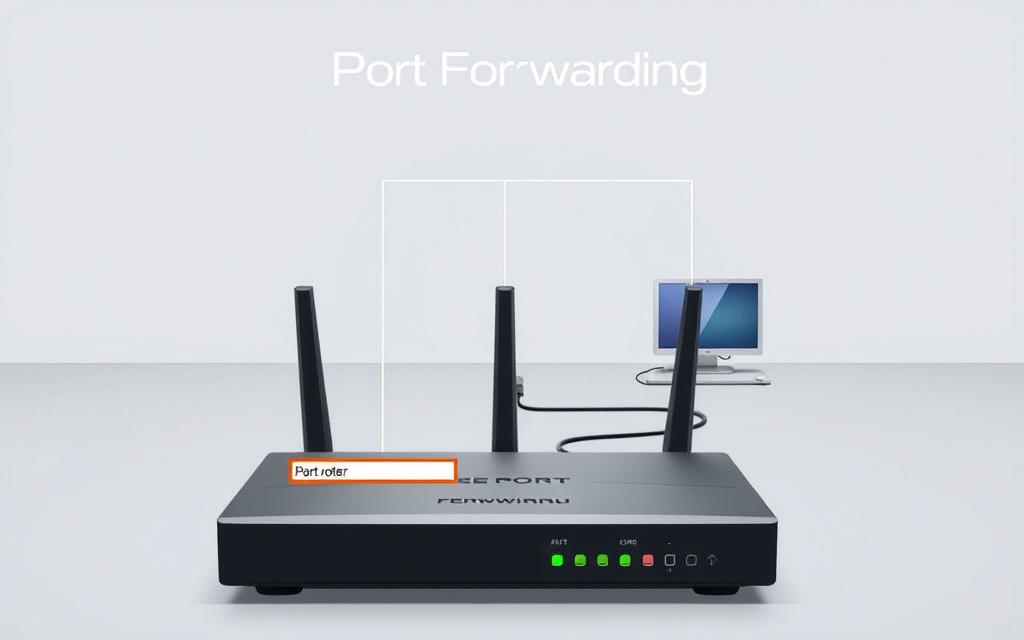
To troubleshoot port forwarding issues on your PC, it’s essential to grasp the fundamentals of how port forwarding works. Port forwarding is a technique used to make a device on your network accessible from the internet. This is achieved by configuring your router to forward incoming requests on a specific port to the internal IP address of the device you’re trying to access.
What Is Port Forwarding and Why It Matters
Port forwarding is crucial for various applications, including online gaming, remote desktop access, and hosting servers. By setting up port forwarding, you’re allowing external devices to communicate with a specific device on your network. This is particularly useful when you need to access a device or service on your home network from outside. For instance, if you’re hosting a game server, port forwarding ensures that incoming traffic on the required port is directed to your gaming server.
When you configure port forwarding on your router, you’re essentially creating a mapping between an external port and an internal IP address and port. Your router, which uses Network Address Translation (NAT) to manage traffic between your internal network and the internet, maintains a table of these mappings. When an external request arrives at your router on a specific port, it checks this table and forwards the traffic to the corresponding internal IP address and port. For this to work effectively, the target device must have a stable internal IP address, either set statically or reserved via DHCP.
Understanding these basics is key to troubleshooting port forwarding issues. By ensuring that your router is correctly configured and that your device has a stable internal IP address, you can resolve many common problems associated with port forwarding.
Why Does My PC Not Work With Port Forwarding: Common Causes
When port forwarding doesn’t work on your PC, it can be due to several underlying issues that need to be addressed. Port forwarding is a crucial configuration for many online activities, but its failure can stem from various technical problems.
One of the primary reasons port forwarding fails is due to incorrect router configuration. The router acts as a gateway to your network, and any misconfiguration can prevent port forwarding from working correctly. Ensure that the port forward rules are set correctly in your router settings.
Windows Firewall Blocking Connections
The Windows Firewall is designed to block unauthorised access to your computer. However, this can sometimes prevent port forwarding from functioning. You may need to adjust your Windows Firewall settings to allow incoming connections on the required ports.
NAT Restrictions from Your ISP
NAT (Network Address Translation) restrictions imposed by your ISP (Internet Service Provider) can also hinder port forwarding. Some ISPs use NAT to manage multiple users on their network, which can interfere with your ability to forward ports.
Dynamic IP Address Problems
Dynamic IP addressing, which is the default for most home networks, can cause port forwarding to fail when your computer’s internal IP address changes unexpectedly. To avoid this, you can set a static IP address for your device or configure a DHCP reservation in your router.
By addressing these common causes, you can troubleshoot and potentially resolve the port forwarding issues on your PC. Ensuring that your router is configured correctly, adjusting Windows Firewall settings, understanding NAT restrictions, and managing IP addresses effectively are crucial steps in maintaining a stable and functional port forwarding setup.
Step-by-Step Troubleshooting Guide
A step-by-step troubleshooting guide can help you overcome obstacles and successfully configure port forwarding on your PC. This comprehensive guide will walk you through verifying your network setup, setting up a static IP address, configuring your router correctly, adjusting Windows Firewall settings, and testing your port forwarding setup.
Verifying Your Network Setup
Before diving into port forwarding configurations, it’s essential to verify your network setup. This involves checking your external and internal IP addresses and identifying your NAT type.
Checking Your External and Internal IP Addresses
Understanding your IP addresses is crucial for successful port forwarding. Your external IP address is the address visible to the internet, while your internal IP address is used within your local network.
Identifying NAT Type
NAT (Network Address Translation) type can affect your port forwarding configuration. Ensure you have the correct NAT type for your needs.
Setting Up a Static IP Address
Setting a static IP address for your device is vital to ensure that port forwarding rules apply consistently. A static IP address remains unchanged even after restarting your device, making it easier to manage port forwarding.
Configuring Your Router Correctly
Your router is a critical component in port forwarding. Proper configuration is necessary for successful port forwarding.
Accessing Router Settings
To configure your router, you first need to access its settings. This is typically done by typing the router’s IP address into a web browser.
Creating Port Forwarding Rules
Once you have accessed your router’s settings, you need to create port forwarding rules. This involves specifying the ports you want to forward and the internal IP address of your device.
Using DMZ as a Troubleshooting Tool
The DMZ (Demilitarized Zone) feature on your router can be used as a troubleshooting tool. By placing your device in the DMZ, you can test if your router’s configuration is the issue.
Adjusting Windows Firewall Settings
Windows Firewall can block incoming connections, affecting your port forwarding setup. Adjusting these settings is crucial to allow the required traffic.
Testing Your Port Forwarding Setup
After configuring port forwarding, it’s essential to test your setup to ensure it’s working correctly.
Using Port Checking Tools
Utilise online port checking tools to verify if your ports are open and accessible from the internet.
Interpreting Test Results
Understanding the results of your port check is crucial. A successful test indicates that your port forwarding is correctly configured.
Test Result
Indication
Action Required
Open/Success
Port forwarding is correctly configured.
No action required.
Closed/Timed out/Connection refused
Issue with port forwarding setup or firewall settings.
Review and adjust configurations.
Conclusion: Ensuring Successful Port Forwarding
To achieve reliable port forwarding, it’s crucial to address potential issues systematically. This involves verifying your router configuration, ensuring a static IP address is set up, and confirming that your Windows firewall isn’t blocking necessary connections.
Regular testing is essential, particularly after updates or changes to your network configuration. For persistent issues, consider alternative methods like VPN services or cloud-based relay services. Remember, port forwarding can expose your server to security risks, so implement strong passwords and keep software updated.
If issues persist, contact your ISP to check for network-level restrictions. By following these steps and maintaining a secure connection, you can ensure successful port forwarding and reliable remote access to your computer.
FAQ
What is port forwarding and how does it work?
Port forwarding is a technique that allows you to redirect incoming network traffic from a specific port on your router to a different port on a device on your local network. This is useful for applications that require remote access, such as online gaming or file sharing.
Why is my router not forwarding ports correctly?
There could be several reasons, including incorrect router configuration, NAT restrictions from your ISP, or a dynamic IP address. Check your router settings and ensure that the port forwarding rules are set up correctly.
How do I set up a static IP address on my device?
To set up a static IP address, you’ll need to access your device’s network settings and manually configure the IP address, subnet mask, and default gateway. This will ensure that your device always uses the same IP address, making it easier to set up port forwarding.
What is the difference between TCP and UDP ports?
TCP (Transmission Control Protocol) ports are used for connection-oriented communication, while UDP (User Datagram Protocol) ports are used for connectionless communication. Some applications may require specific TCP or UDP ports to be open.
How do I test if my port forwarding setup is working?
You can use online tools such as port scanning services or check the application’s logs to see if it’s receiving incoming connections. You can also try accessing the application from outside your network to test if the port forwarding is working correctly.
Can my ISP block certain ports or restrict port forwarding?
Yes, some ISPs may block certain ports or restrict port forwarding due to security concerns or other reasons. Check with your ISP to see if they have any restrictions in place.
Do I need to adjust my Windows Firewall settings for port forwarding?
Yes, you may need to adjust your Windows Firewall settings to allow incoming connections on the specific port you’re trying to forward. You can do this by creating a new rule in the Windows Firewall settings.
Can I use port forwarding with a dynamic IP address?
While it’s technically possible to use port forwarding with a dynamic IP address, it’s not recommended as the IP address may change over time. Consider using a static IP address or a dynamic DNS service to ensure reliable port forwarding.
Knowing how to find open ports on your computer is vital. It helps keep your computer safe and your network running well. An open port can be a risk. It might allow unauthorized access or let malware in if you don’t watch it closely. Your computer has 65,536 ports. It’s key to know which ones…
Dedicated fans have taken the initiative to create a PC port of Sonic Unleashed, a visually impressive entry in the franchise. The Unleashed Recompiled project is a community-driven effort that brings this beloved game to modern PC hardware with significant enhancements. This fan project has garnered significant attention in the Sonic community as SEGA has…
EA Sports is set to revitalise the sports gaming community with the launch of College Football25 on July 19th, 2024, for PS5 and Xbox Series X/S. After a decade-long hiatus, the beloved franchise is returning, generating significant excitement among enthusiasts. The highly anticipated game promises to deliver a comprehensive college football experience, featuring all 134…
Resetting USB ports is vital for keeping your devices connected smoothly today. It helps with printers, mice, and external drives. Encountering USB port issues can interrupt your work and daily activities. This guide is here to show you how to troubleshoot these problems on Windows computers. First, make sure you’re logged in as an admin….
Understanding the symbols associated with HDMI ports on your PC is crucial for setting up an optimal audio-visual experience. As technology advances, HDMI has become the standard for high-definition multimedia connections, enabling the seamless transfer of uncompressed video and digital audio data between compatible devices. The various HDMI port symbols and names found on modern…
Capcom’s Resident Evil 4 is widely regarded as one of the best video games ever created, garnering exceptional review scores and selling millions of copies worldwide. The game’s influence on the survival-horror genre has been profound, leading to numerous versions and ports across various platforms. This article provides a comprehensive retrospective of the initial Resident…