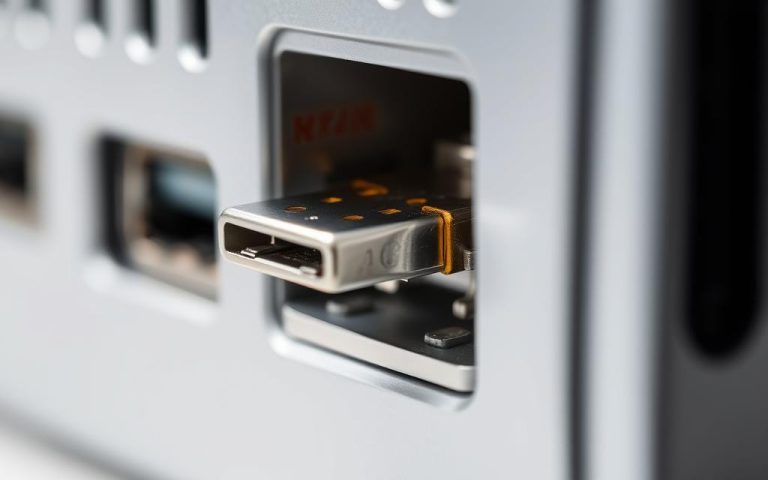
For PC users, an SD memory card is an ideal way to expand storage and transfer data between devices. Whether you’re saving photos, music, emails, or software, an SD card provides a convenient solution.
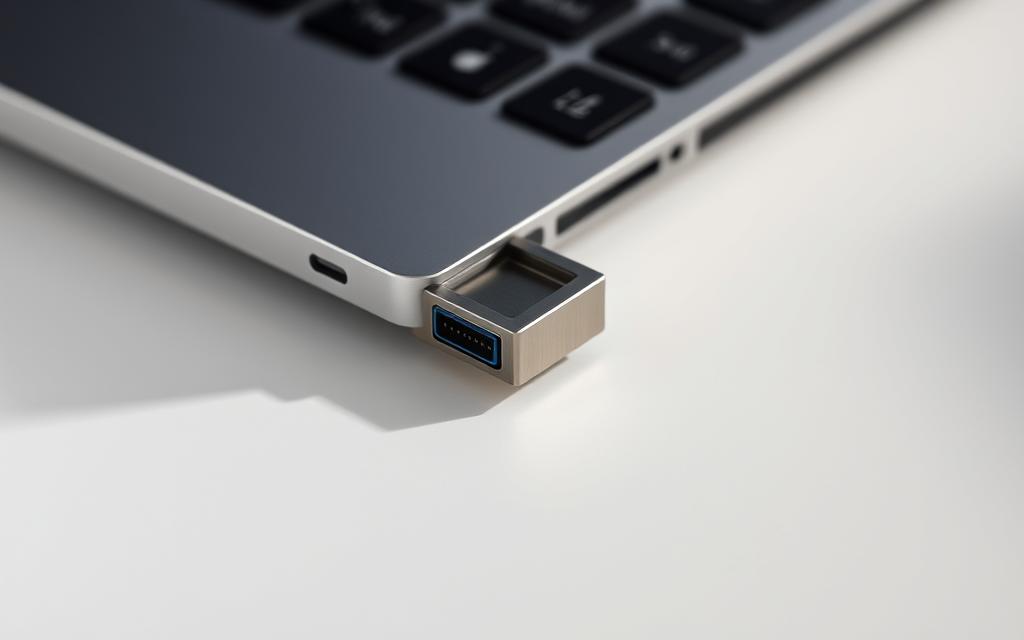
Having an SD card port on your computer allows for seamless data transfer and expanded storage options. For those without a built-in slot, external SD card readers are available. This guide will explore the essential aspects of SD card ports and readers, helping both novice and experienced users make informed decisions about their computer‘s storage needs on Windows operating systems.
SD cards have become an essential tool for PC users, offering a convenient means of storing and transferring data. They provide an ideal way to save your PC’s data, such as photos, music, emails, software, documents, and apps, which can then be transferred to other devices for future use.
Data Storage and Transfer Capabilities
The data storage and transfer capabilities of SD cards are significant advantages. They enable seamless file transfer between your PC and various portable devices without requiring special software. This makes it easy to share files between different platforms.
Compatibility with Other Devices
When considering SD card compatibility, it’s crucial to address potential limitations between different Windows versions and SD card formats. Some reader products may not be compatible with certain SD card formats, and troubleshooting these issues is essential. Ensuring that your SD card and reader are compatible is vital for smooth data transfer.
To avoid data loss and damage to your SD card, it’s essential to follow the correct insertion and removal procedures. Proper handling ensures the longevity of your SD card and maintains the integrity of the data stored on it.
Step-by-Step Guide to Inserting SD Cards
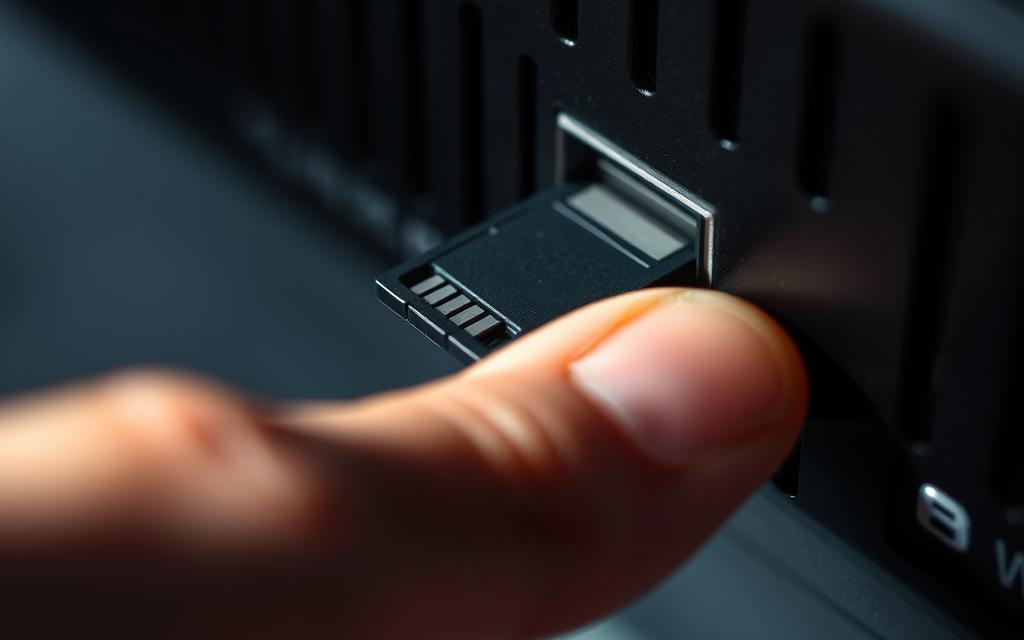
Inserting an SD card into your PC is straightforward. Simply align the card with the memory card slot and gently push it in until you hear a clicking sound, indicating it is securely in place. You can then access the card through your computer’s file system, allowing you to save, move, or delete data as needed.
Safely Removing SD Cards from Your PC
Before physically removing an SD card from your PC, it’s crucial to safely eject it through the Windows system tray to prevent data corruption. To do this, locate the “Safely Remove Hardware” icon, click on it, and select your SD card from the list. Once Windows confirms it is safe to remove, gently push the card into the slot until it disengages, then pull it out. This “push-to-eject” mechanism is standard in most PCs.
Step
Action
Windows Notification
1
Insert SD card into the slot
Card recognized by Windows
2
Access card through file system
Data can be saved, moved, or deleted
3
Safely eject card via Windows system tray
Confirmation to remove hardware
For additional help with specific SD card removal issues or to troubleshoot problems, you can visit reliable support sites that offer guidance tailored to different PC models and devices.
When it comes to expanding storage or transferring data, external SD card readers are a must-have for PC users. These devices allow users to easily access data from their SD cards, making it simple to transfer files or expand their PC’s storage capacity.
USB SD Card Readers
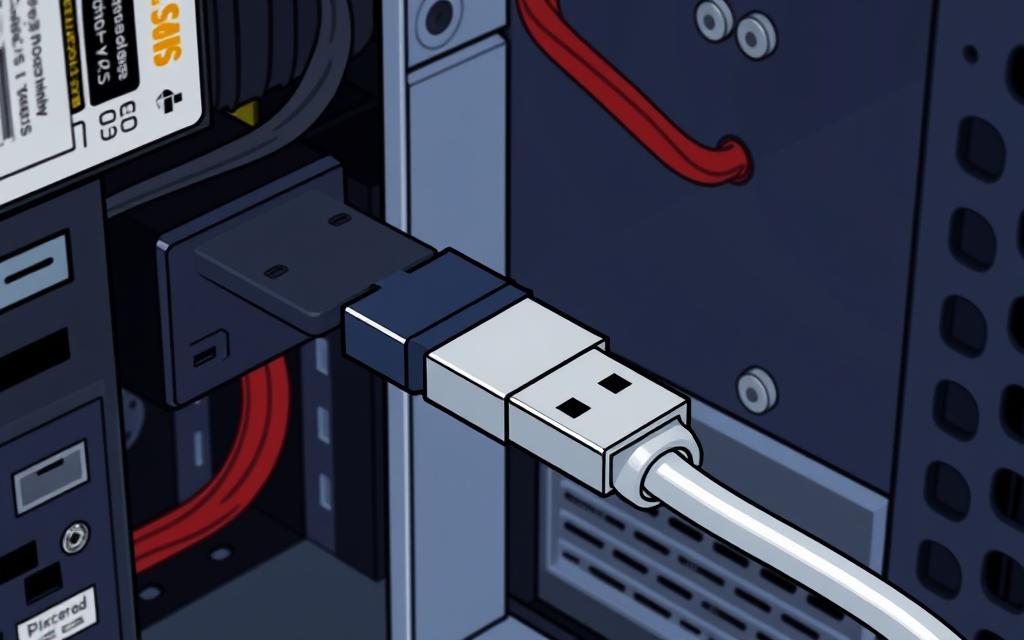
USB SD card readers offer a convenient and compact solution for PC users. By simply inserting the SD card into the reader and connecting it to a PC via USB, users can quickly transfer data or access their files. This type of reader is particularly useful for those who need to frequently transfer data between devices.
Multi-Card Reader Options
For users who work with multiple card formats, multi-card readers provide a versatile solution. These readers support various formats, including SD, microSD, CompactFlash, and Memory Stick, making it easy to manage different types of cards. To configure a multi-card reader in Windows, users can insert the device, open Settings from the Start Menu, click on System, and then select Storage from the left menu to set the reader as a default location for specific content or applications.
Conclusion
As we conclude our exploration of SD card ports and readers, it’s clear that these technologies play a vital role in enhancing data management for PC users. SD cards offer a flexible way to expand storage and transfer data, remaining a relevant solution despite cloud storage alternatives. Properly understanding SD card technology can help users maximise their Windows computer systems. By choosing the right SD card solution, users can ensure data integrity and hardware longevity.
FAQ
How do I check if my computer has a built-in memory device reader?
You can check your computer’s specifications or look for a slot on the side or front of your laptop or desktop tower. Most modern laptops have a built-in memory card reader.
What type of memory card is compatible with my PC?
Most PCs support standard memory cards, including micromemory cards with an adapter. Check your PC’s documentation to confirm compatibility.
How do I safely remove a memory card from my PC?
Go to the ‘Safely Remove Hardware’ icon in your system tray, select the device, and wait for the notification that it’s safe to remove.
Can I use a USB card reader with my PC?
Yes, USB card readers are compatible with most PCs and offer a convenient way to read memory cards.
Why is my PC not recognising my memory card?
Try checking the card for damage, ensure it’s properly inserted, and check the device settings in your PC’s device manager.
How do I format a memory card on my PC?
Go to ‘This PC’ or ‘My Computer’, right-click on the drive, and select ‘Format’ to begin the formatting process.
The release of the Super Mario 64 decompilation project in 2019 revolutionised the way players experience this classic game on modern systems. The subsequent creation of the SM64 PC Port has enabled gamers to enjoy the original title with enhanced features, breathing new life into a beloved classic. This port has not only made the…
When investing in a new display, understanding the various connection options available is crucial for making an informed decision. Modern displays feature a range of ports and connectors, each serving different functions and use cases. From legacy connections to cutting-edge video interfaces like HDMI and DisplayPort, the options can be overwhelming. To navigate this complex…
In the realm of computer networking, port numbers play a crucial role in facilitating communication between devices and applications. Essentially, a port number is a digital doorway that allows data to flow in and out of your computer. Understanding how port numbers work is vital for troubleshooting network issues, configuring firewalls, and ensuring secure connections….
Cryptocurrency has emerged as a revolutionary form of digital currency, transforming the way we perceive and conduct financial transactions. At its core, cryptocurrency is a digital payment system that operates independently of central banks and governments, utilizing blockchain technology to record transactions across a decentralized network. This innovative technology enables secure, peer-to-peer transactions without the…
After 14 years of waiting, fans of the classic Western adventure game, Red Dead Redemption, can finally rejoice. The game is set to be released on PC on October 29, 2024, and will be available on Steam, Epic Games Store, and Rockstar Store. This follows the game’s previous release on Nintendo Switch and PS4 in…
USB ports are crucial components of modern computers, enabling connections to various peripherals and devices. When a USB port fails, it can significantly impact your ability to use external devices such as mice, keyboards, and external storage. This comprehensive guide will walk you through diagnosing and resolving issues with faulty USB ports. We’ll cover both…