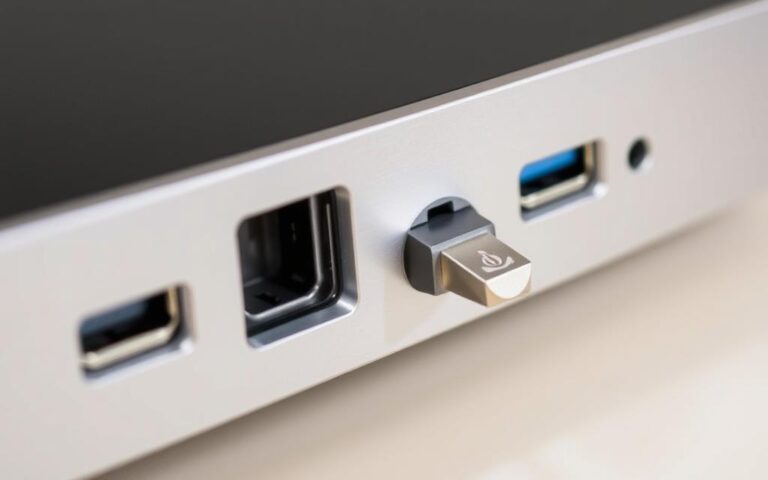
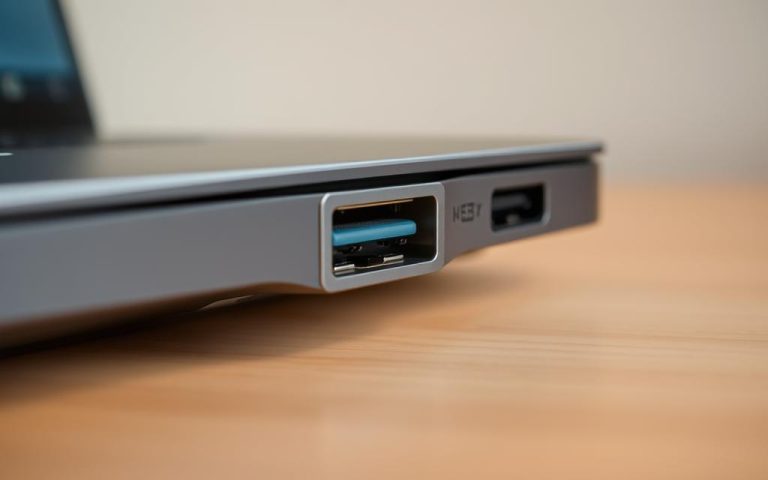
Are you experiencing issues with your headphone jack on your PC? You’re not alone. Many users face audio problems due to various reasons, including software glitches, outdated drivers, or physical damage.
Understanding the root cause of the issue is crucial to implementing the right fix. Whether it’s a problem with the audio settings or a hardware fault, this guide will walk you through systematic approaches to diagnosing and fixing the problem.
We’ll explore both Windows software fixes and hardware remedies to ensure you can resolve the audio issue regardless of its cause, getting your headphones working properly again.
When your PC’s headphone port stops working, it can be due to a variety of reasons, ranging from simple software glitches to hardware malfunctions. Understanding the root cause is crucial to resolving the issue efficiently.
Common Software Issues
Software issues are often the primary culprit when headphone ports stop working. This can include incorrect audio settings, outdated or corrupted drivers, and conflicts with recently installed applications. For instance, Windows updates can sometimes change audio configurations, causing the system to route sound to the wrong output device or disable the headphone jack entirely. Ensuring that your audio drivers are up-to-date and that your headphones are selected as the default playback device in your system’s sound settings can often resolve these issues.
Physical Damage and Hardware Problems
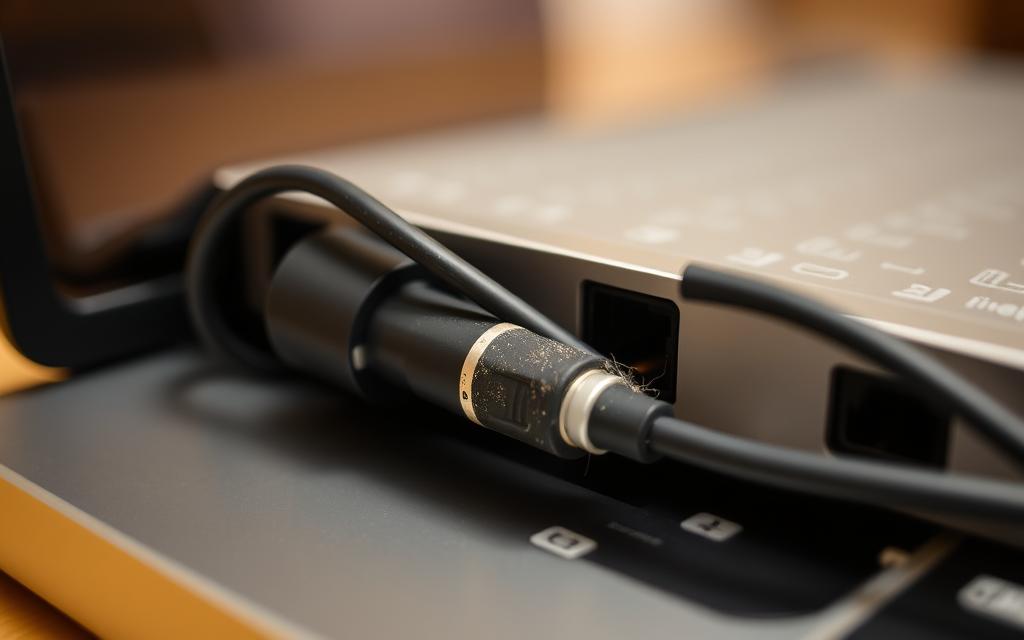
On the other hand, physical damage to the headphone port or hardware problems can also prevent your headphones from working. Rough handling, inserting incompatible plugs, or accumulation of dust and debris inside the jack can cause physical damage. Hardware issues might include loose connections on the motherboard, damaged audio cards, or problems with the front panel audio connections in desktop computers. Inspecting the headphone jack and ensuring that it’s free from debris can be a simple yet effective troubleshooting step.
Before diving into complex troubleshooting, there are a few simple checks you can perform to resolve headphone port issues on your PC. Ensuring that your headphones are properly connected and that the volume is turned up can often resolve the issue.
Check Your Connections and Volume Settings
Make sure your headphone is plugged in properly. Verify that the headphone plug is fully inserted into the correct port, usually colour-coded green, and that there’s no visible damage to either the plug or port. Additionally, check the volume settings at multiple levels: the physical volume controls on your headphones (if present), the Windows volume mixer, and the volume settings within the specific application you’re using.
Restart Your Computer with Headphones Plugged In
Sometimes, simply restarting your computer with your headphones already plugged in can force Windows to recognise and properly configure the audio device, resolving many common detection issues. This straightforward step can often fix the problem without needing further troubleshooting.
Test with Different Headphones
To determine whether the problem lies with your headphones or with the computer’s port, try testing with different headphones. If alternative headphones work, your original pair may be faulty, indicating that the issue is not with the PC’s headphone jack.
Solving Headphone Port Not Working on PC Through Software
Resolving headphone port issues on your PC often involves delving into software settings and driver updates. Software solutions are frequently the most effective way to address headphone port problems, as many issues stem from driver conflicts, incorrect settings, or Windows audio service malfunctions.
The Windows Audio Troubleshooter is a built-in diagnostic tool that can automatically detect and fix common audio problems. To access it, navigate to Settings > Update & Security > Troubleshoot, providing a straightforward first step towards resolving your headphone port issue.
How to Access the Troubleshooter
To start the troubleshooter, go to your Windows Settings, then select “Update & Security,” and finally click on “Troubleshoot.” From there, you can choose the appropriate troubleshooter for your audio issue.
Applying the Recommended Fixes
Once you’ve accessed the troubleshooter, follow the on-screen instructions to apply the recommended fixes. Ensure your computer is connected to the internet to receive troubleshooting recommendations.
Updating Your Audio Drivers
Outdated or corrupted audio drivers frequently cause headphone port failures. Updating these drivers can resolve compatibility issues and get your headphone jack working again.
Using Device Manager to Update Drivers
You can update your audio drivers through the Device Manager. Right-click on the audio device listed under “Sound, video and game controllers” and select “Update driver” to search for and install the latest driver software.
Downloading Drivers from Manufacturer Websites
For more reliable driver updates, visit your computer or motherboard manufacturer’s website to download the latest audio drivers. This ensures you get the correct version specifically designed for your hardware, as highlighted in this Microsoft support page.
Setting Your Headphones as the Default Playback Device
Sometimes, your headphone jack might not be working simply because it’s not enabled or set as the default playback device. You can enable your audio device and set it as default through the Sound settings panel, forcing Windows to route audio through the headphone port.
Hardware Solutions for Headphone Jack Problems
When software troubleshooting fails to resolve headphone port issues, hardware solutions become necessary. This is particularly true when physical damage or debris is the underlying cause. In such cases, inspecting and potentially repairing or cleaning the headphone jack can resolve the issue.
Cleaning Your Headphone Jack Safely
A clogged headphone jack is a common issue that can prevent headphones from working properly. To clean it safely, first, ensure your laptop is powered off to prevent any electrical damage.
Tools You’ll Need
Compressed air
Cotton swabs (with most of the cotton removed)
Isopropyl alcohol for stubborn residue
Never use metal objects that could scratch or damage the internal contacts.
Step-by-Step Cleaning Process
Gently blow compressed air into the jack to remove loose debris.
Dampen a cotton swab with isopropyl alcohol and carefully insert it into the jack to clean the contacts.
Allow the jack to dry before testing your headphones again.
Disabling Front Panel Jack Detection
For desktop computers with a Realtek sound card, disabling front panel jack detection can sometimes resolve detection issues. This can be done through the Realtek HD Audio Manager by unchecking the “Enable Front Panel Jack Detection” option. This forces the system to check for connected devices more aggressively.
Checking for Physical Damage
Physical inspection of the headphone port can reveal obvious damage like bent pins or loose connections. If you identify any damage, it might require professional repair. Regularly checking your headphone jack for signs of wear can help prevent issues.
Issue
Possible Cause
Solution
Headphones not detected
Debris or dust in the jack
Clean the headphone jack
Intermittent sound
Loose connection or bent pins
Inspect and repair the jack
No sound output
Physical damage to the jack
Professional repair or replacement
By addressing potential hardware issues, you can often resolve headphone jack problems that software troubleshooting cannot fix.
Advanced Fixes When Nothing Else Works
When all else fails, there are still advanced fixes you can try to resolve your headphone jack issue. Sometimes, the problem may be related to the sound format settings on your computer.
Changing the Default Sound Format
To change the default sound format, access the sound settings through the Control Panel. Experimenting with different sample rates and bit depths may uncover the optimal setting for your audio hardware, potentially resolving compatibility issues with the content you’re trying to play.
Considering External Audio Solutions
If your laptop’s headphone jack is damaged beyond repair, consider using external audio solutions like USB sound cards or audio interfaces. These devices bypass problematic onboard audio hardware, providing a reliable alternative and often offering superior sound quality.
Before investing in external solutions, ensure you’ve exhausted all possible software fixes and considered the cost of professional repair.
Conclusion
With the systematic approach outlined in this article, most headphone port problems can be fixed without needing professional help. By following the steps, from simple checks to advanced solutions, you can resolve audio issues efficiently. Regular maintenance of your audio drivers and occasional cleaning of the headphone jack can prevent many common problems. If issues persist, consider alternatives like USB and Bluetooth audio solutions. By applying these fixes, you can enjoy working headphones and improve your overall computing experience.
FAQ
Why is my headphone jack not functioning properly on my computer?
The issue could be due to a software problem, physical damage, or incorrect settings. Try checking your connections, updating your audio drivers, and ensuring your headphones are set as the default playback device.
How do I update my audio drivers to fix the headphone jack issue?
You can update your audio drivers by going to the Device Manager, locating the sound card, right-clicking it, and selecting ‘Update driver’. Alternatively, you can download the latest drivers from the manufacturer’s website.
What should I do if the Windows Audio Troubleshooter doesn’t resolve the issue?
If the troubleshooter doesn’t fix the problem, try restarting your computer with the headphones plugged in, or test with different headphones to rule out any issues with the current pair.
How do I set my headphones as the default playback device in Windows?
To set your headphones as the default playback device, go to the Control Panel, click on ‘Sound’, and navigate to the ‘Playback’ tab. Right-click on your headphones and select ‘Set as Default Device’.
Can physical damage to the headphone jack cause it to stop working?
Yes, physical damage to the headphone jack can cause it to malfunction. Inspect the jack for any visible damage and consider having it repaired or replaced if necessary.
Is there a way to disable front panel jack detection to resolve the issue?
Yes, you can disable front panel jack detection through your sound card’s settings or the manufacturer’s software. This can sometimes resolve issues with the headphone jack not being recognised.
Are there any external audio solutions if my headphone jack is not working?
Yes, you can consider using external audio solutions such as USB sound cards or adapters that can provide an alternative audio output.
The maximum number of ports a computer can have really matters for its performance and computer connectivity ports. This number changes depending on many things like the operating system and the type of connection. Usually, modern systems can use many ports, adding up to a huge total of 65,535. This includes both Transmission Control Protocol…
It’s critical to know your computer’s connectivity options today, especially FireWire technology. FireWire is key for hooking up older audio and video gear. It’s still important for those who use cameras, audio interfaces, and external drives. Many computers, especially in music recording, still have FireWire ports. This makes checking for a FireWire port necessary. Knowing…
Universal Serial Bus (USB) technology has revolutionized the way we connect devices to our computers. With its fast speeds and reliable connections, USB has become an essential feature for transferring data between peripherals like printers, external hard drives, and more. Understanding the location of USB ports on your computer is crucial for connecting peripherals and…
The latest version of the unofficial PC port of Marvel Spider-Man has been released by Team Brazil, bringing the game to PC gaming enthusiasts. This unofficial port has garnered significant attention due to its impressive quality, rivalling the official PS5 version. The game can now run at native 4K resolution with up to 120fps on…
In 2025, the workspace is transforming with the advent of modern monitors equipped with extra USB ports. These advanced displays serve as versatile hubs, allowing users to connect peripherals directly to the screen rather than their laptop. This integration eliminates cable clutter, providing convenient access to USB devices such as keyboards, mice, and external storage….
Many mobile gamers want to play their favourite games on bigger screens. Fruit Ninja is a hit that works great on desktops. There are two main ways to play Fruit Ninja on your computer. You can use Android or iOS emulators to run the mobile app. Or, you can get the official PC version for…