USB ports on your computer are essential for customising and controlling your PC experience. They allow you to connect various devices, enhancing your overall computing experience. However, when these ports malfunction or are insufficient, it can hinder your ability to use peripherals and other hardware.
The importance of USB connectivity cannot be overstated, as it enables users to connect a myriad of devices to their computer. This comprehensive guide will explore various methods to diagnose, repair, and expand your computer’s USB capabilities, ensuring you can connect all your essential devices without compromises.
Understanding the different types of USB ports and their capabilities is crucial for optimising your computer’s connectivity options. Whether you’re a gamer or a professional, this guide will help you maximise your USB potential in a straightforward way.
To maximise the utility of USB ports, it’s essential to comprehend their limitations and potential issues. USB ports are a crucial component of modern computing, allowing users to connect a variety of devices to their PCs.
Common USB Port Problems
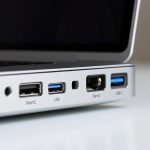
Users often encounter issues with USB ports, including connectivity problems and power delivery limitations. Some manufacturers designate ports as data-only, meaning they can be used for transferring data but not for drawing power. It’s worth checking the label next to your USB ports for indications of their intended use, such as a charger plug icon.
Different Types of USB Ports and Their Capabilities
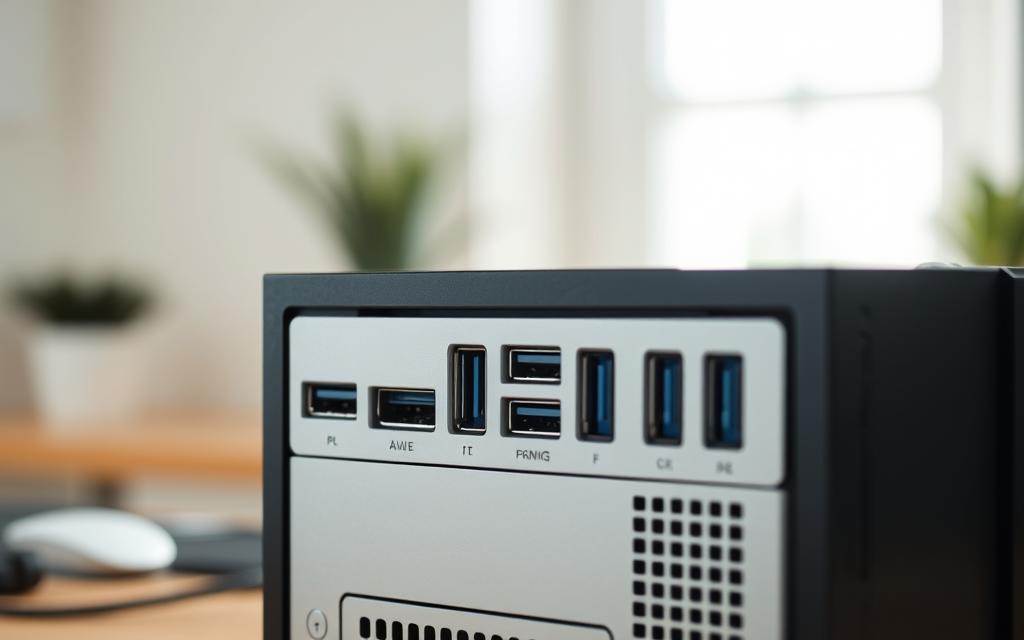
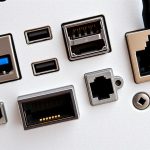
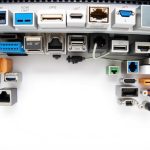
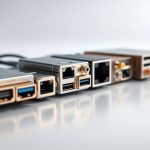
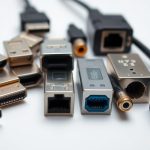
The capabilities of USB ports vary significantly depending on their type. For instance, USB 2.0 ports offer basic connectivity with speeds up to 480 Mbps, making them suitable for keyboards, mice, and other basic peripherals. In contrast, USB 3.0/3.1 ports provide much faster data transfer rates, reaching up to 5-10 Gbps, and are typically identified by their blue colour.
Other types of USB ports include USB-C, which features a reversible connector design and can support various protocols, including Thunderbolt. Thunderbolt ports, often using USB-C connectors, offer the highest performance with speeds up to 40 Gbps. The power delivery capabilities of these ports also vary, with USB-C supporting up to 100W in some implementations.
Understanding these differences is crucial for connecting devices to the most appropriate ports for optimal performance. By recognising the capabilities and limitations of each port type, users can make informed decisions about how to use their USB ports effectively.
Diagnosing Why Your USB Ports Aren’t Working
Diagnosing issues with your USB ports requires a systematic approach to identify the root cause. This process involves checking the USB port, the device you’re trying to connect, and the cable you’re using.
Narrowing Down the Problem
To start diagnosing, you need to narrow down the problem. Try using a different device in the same port to see if the issue persists. For example, if a mouse isn’t working, try plugging in a keyboard or printer.
Identifying Port-Specific vs System-Wide Issues
It’s essential to determine whether the problem is specific to one port or if it’s a system-wide issue. Try using the same device and cable in different ports on your computer. If the issue persists across multiple ports, it may indicate a system-wide problem.
Testing with Different Devices and Cables
Testing with various devices and cables can help you identify the source of the problem. Use known working devices to test suspect ports, and ensure you’re using high-quality USB cables to avoid cable-related issues.
Device Type
Symptoms
Possible Cause
Storage Devices
Not recognised
Port or cable issue
Input Devices
Not functioning
Device or port issue
Output Devices
Not working
Power delivery issue
By methodically testing different device and cable combinations, you can gather reliable diagnostic information to resolve the issue with your USB ports.
Software Solutions to Get More Functioning USB Ports in a PC
Optimising your PC’s software settings is a crucial step in resolving USB connectivity issues. Effective management settings can significantly improve the functionality of your USB ports.
Updating USB Drivers
Outdated USB drivers can lead to connectivity problems. To update your USB drivers, navigate to the Device Manager in Windows, locate the USB controllers, right-click on each, and select ‘Update driver.’ This ensures you have the latest drivers installed, potentially resolving connectivity issues.
Managing USB Controllers
Managing your USB controllers is another vital step. In the Device Manager, you can disable and re-enable USB controllers to reset them. This can sometimes resolve issues related to power settings and connectivity.
Disabling USB Selective Suspend
USB Selective Suspend is a power-saving feature that can sometimes disable USB ports when you’re trying to use them. To disable it, type “Power Plan” into Windows search, select ‘Edit Power Plan,’ then ‘Change advanced power settings,’ navigate to ‘USB Settings,’ and disable the ‘USB selective suspend setting’ for both ‘On battery’ and ‘Plugged in’ options.
Action
Description
Benefit
Update USB Drivers
Install the latest USB drivers
Resolves connectivity issues
Manage USB Controllers
Reset USB controllers
Fixes power setting issues
Disable USB Selective Suspend
Prevent USB ports from being disabled
Improves USB reliability
By implementing these software solutions, you can enhance the reliability and functionality of your PC’s USB ports. Regularly reviewing your power settings and settings within Windows can help maintain optimal performance.
Cleaning and Maintaining USB Ports
The longevity and functionality of your computer’s USB ports depend on regular cleaning and maintenance. Dust, debris, and wear and tear can lead to issues with your USB connections, making it essential to keep these ports in good condition.
Safely Removing Debris from USB Ports
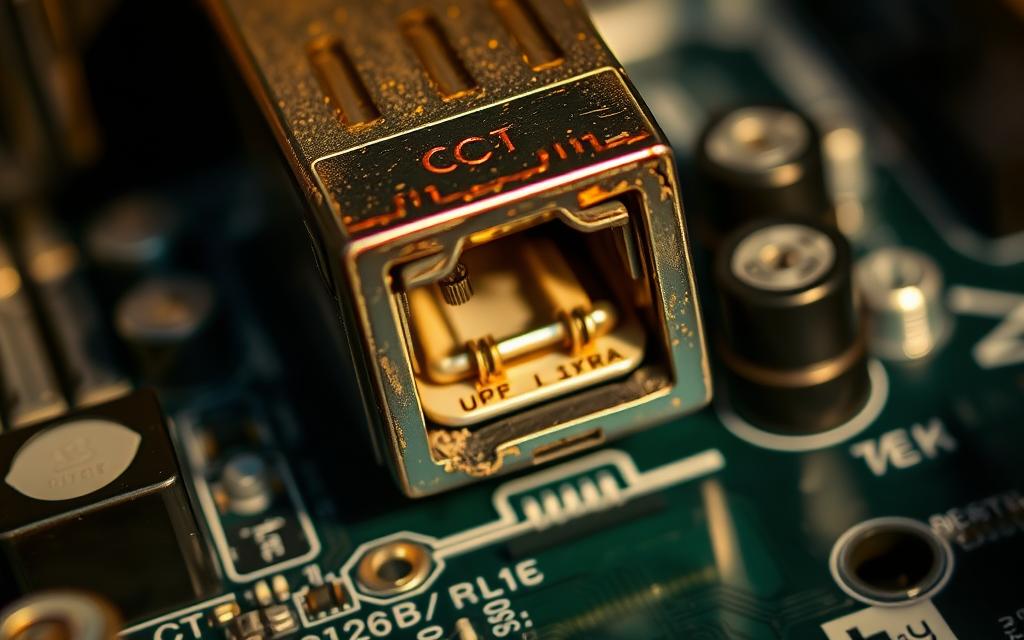
To maintain your USB ports, start by safely removing any debris. Use compressed air to gently blow out dust and dirt. For more thorough cleaning, a small brush or a cotton swab lightly dipped in isopropyl alcohol can be used. Be cautious not to push debris further into the port or damage the internal components.
Use compressed air to remove loose debris.
Avoid using sharp objects that could damage the port.
For stubborn dirt, a cotton swab with isopropyl alcohol can be effective.
Dealing with Loose or Damaged Ports
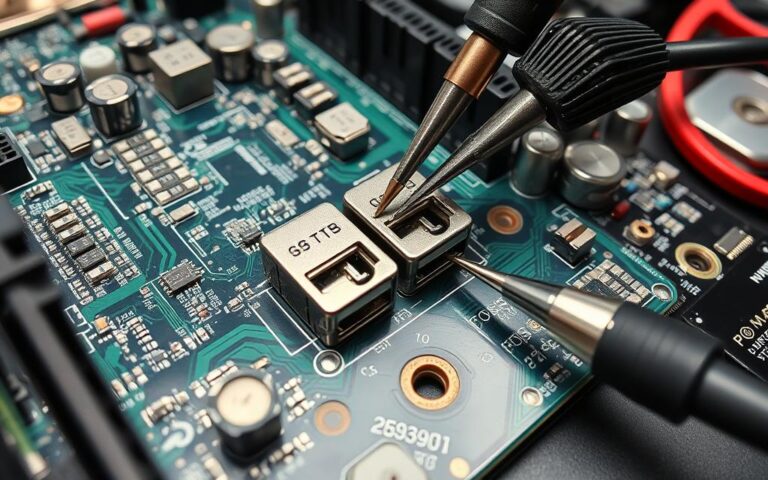
If your USB port feels loose or is damaged, there are several steps you can take. For desktop computers, it might be possible to open the chassis and check if the port is simply loose from the motherboard or if there’s internal damage. However, laptop USB port repairs typically require professional service due to their compact construction.
Loose USB ports may indicate detachment from the motherboard.
Minor repairs can be done on desktop computers with accessible components.
For laptops, professional repair is often the best option.
Temporary solutions like USB port blockers can prevent further damage.
By following these tips, you can help ensure your USB ports remain in good working condition, reducing the risk of hardware issues and maintaining your computer’s overall performance.
Hardware Solutions for Adding More USB Ports
Hardware upgrades provide an effective way to increase the number of USB ports, offering flexibility for various devices.
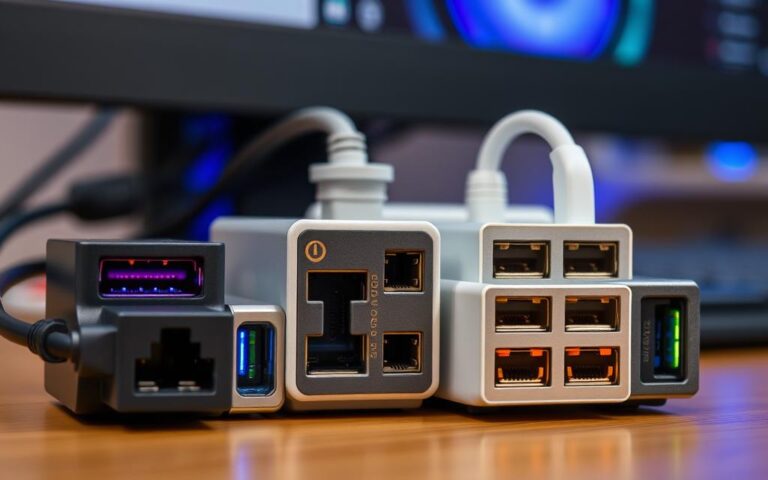
When looking to expand USB connectivity, users have several hardware options at their disposal. These include USB hubs, PCI/PCIe expansion cards, and docking stations for laptops.
USB Hubs: Powered vs Unpowered
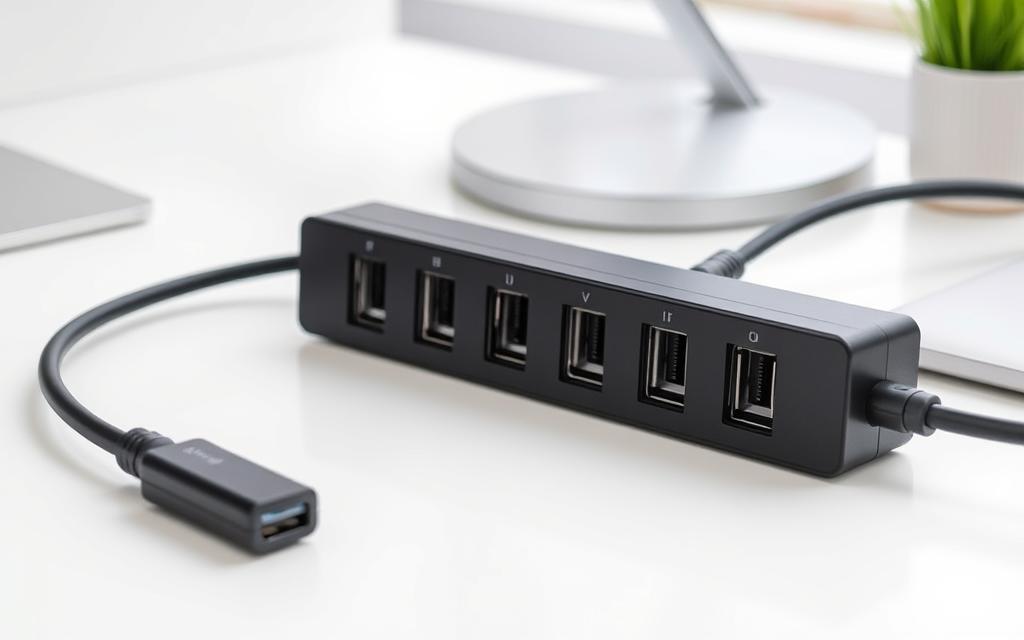
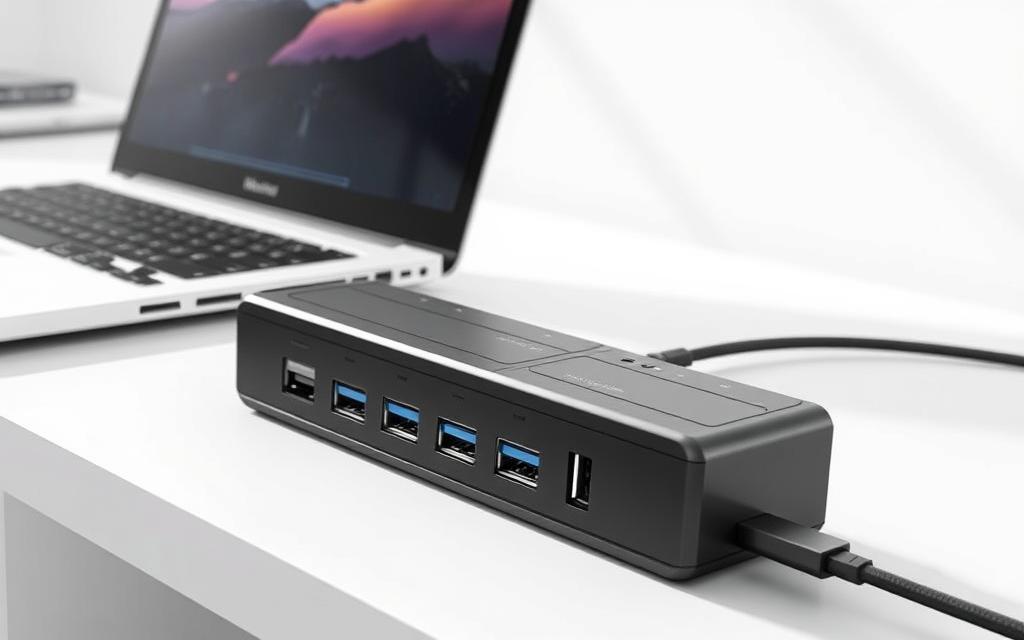
USB hubs are a straightforward solution for adding more ports. They come in two types: powered and unpowered. Powered hubs are recommended as they provide sufficient power to connected devices, whereas unpowered hubs rely on the host device’s power.
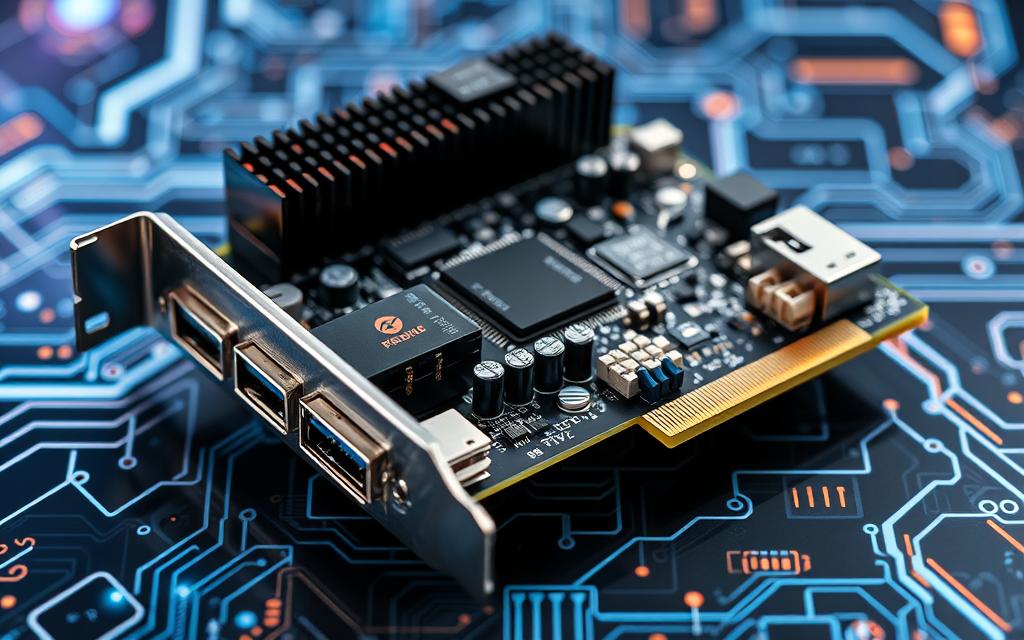
For desktop PCs, installing a PCI or PCIe USB expansion card can significantly increase the number of available USB ports. These cards can offer additional ports and sometimes support newer USB standards.
Docking stations are particularly useful for laptops, providing not only additional USB ports but also other connectivity options like video output, network, and audio connections. Modern docks often connect via a single USB-C or Thunderbolt port.
Docking stations provide comprehensive expansion options for laptops beyond just USB ports.
They are ideal for creating a desktop-like experience with a laptop.
Power delivery through the dock can charge your laptop while connected.
Premium docks support multiple monitors and high-speed data transfer simultaneously.
When selecting a docking station, consider the variety and placement of ports to ensure they meet your specific needs. Universal docks work with most laptops, while manufacturer-specific docks offer deeper integration with particular models.
Optimising USB Performance
Maximising USB performance can significantly enhance your overall computing experience, from data transfer speeds to device connectivity. To achieve this, it’s essential to understand the factors that influence USB performance and how to optimise them.
Understanding USB Bandwidth Limitations
USB bandwidth limitations can significantly impact the performance of your devices. The total available bandwidth is shared among all connected devices, which can lead to reduced data transfer speeds if multiple high-bandwidth devices are connected simultaneously. For instance, USB 3.0 has a maximum bandwidth of 5 Gbps, while USB 3.2 Gen 2 can reach speeds of up to 20 Gbps.
To manage bandwidth effectively, it’s crucial to understand the specifications of your USB ports and the devices connected to them. This knowledge can help you make informed decisions about device configuration and data transfer priorities.
Prioritising Devices Based on Speed Requirements
Prioritising devices based on their speed requirements is vital for optimising USB performance. Critical devices that require high-speed data transfers, such as external SSDs, should be connected to the fastest available USB ports. In contrast, devices with lower speed requirements, like keyboards and mice, can be connected to slower ports.
Windows Device Manager provides valuable information about USB controller and device status, helping you identify potential bottlenecks and make necessary adjustments. By prioritising your devices effectively, you can ensure that your most critical devices receive the necessary bandwidth.
Troubleshooting Performance Issues
Performance issues with USB devices can manifest in various ways, including intermittent connections, slow data transfers, and device recognition delays. To troubleshoot these issues, start by checking the Windows Device Manager for diagnostic information about USB controllers and devices.
Adjusting power management settings can also help resolve performance issues. Features like USB Selective Suspend can throttle USB performance, so it’s essential to adjust these settings for critical devices. Additionally, background processes competing for USB bandwidth and driver conflicts can cause performance degradation, making it necessary to monitor system resources and update drivers as needed.
Conclusion
In essence, resolving USB port issues and expanding capacity requires a tailored approach that considers the specific needs and configuration of your computer. By understanding the technical aspects of USB connectivity, users can make informed decisions about the best way to enhance their system’s capabilities.
Both software and hardware solutions are available to expand and optimise USB ports. Diagnosing specific issues is crucial before implementing any solution. Regular maintenance and proper device management can prevent many common USB problems. By combining these strategies, users can significantly improve their computer’s USB functionality without professional assistance.
With the methods outlined in this guide, users can ensure their computer supports all the devices they need. As USB technology continues to evolve, staying informed about new standards and compatibility issues remains important.
FAQ
Why are my USB ports not recognising devices?
This issue can be caused by outdated USB drivers. Ensure you update your drivers through the Device Manager or by downloading the latest versions from the manufacturer’s website.
Can a faulty USB cable cause issues with my USB ports?
Yes, a damaged or faulty cable can cause connectivity problems. Try using a different cable to rule out any issues related to the cable.
What is the difference between a powered and unpowered USB hub?
A powered USB hub has its own power source, allowing it to supply power to connected devices, whereas an unpowered hub relies on the host computer for power. Powered hubs are recommended for devices that require more power.
How do I disable USB Selective Suspend?
To disable USB Selective Suspend, go to your computer’s Power Settings, then navigate to the USB settings and disable the feature. This can help resolve issues with USB devices not functioning properly.
Can I add more USB ports to my laptop using a docking station?
Yes, a docking station can provide additional USB ports and other connectivity options for your laptop. Ensure the docking station is compatible with your laptop’s specifications.
Why is my USB device not working on a specific port but works on others?
The issue might be with the specific USB port. Try cleaning the port or checking for any damage. If the problem persists, it could indicate a hardware issue with the port.
What are the benefits of using a PCIe USB expansion card?
A PCIe USB expansion card can add more USB ports to your computer and often provides faster data transfer speeds compared to traditional USB ports. It’s a good solution for expanding USB connectivity.
How do I update my USB drivers?
You can update USB drivers through the Device Manager by right-clicking on the USB device and selecting ‘Update driver’. Alternatively, visit the manufacturer’s website to download and install the latest drivers.
USB connectivity is a crucial aspect of modern computing, enabling users to connect various devices such as printers, cameras, and smartphones to their PCs. Ensuring that USB ports function correctly is vital for maintaining productivity and device compatibility. However, when these ports stop working, it can be frustrating and disrupt workflow. The issue of usb…
Experiencing issues with your HDMI port on your PC can be frustrating, especially when trying to connect to external displays. The HDMI (High-Definition Multimedia Interface) is a crucial component for transmitting uncompressed video data and digital audio signals from a source device to a compatible display device. Many users encounter HDMI connectivity problems that hinder…
USB ports are vital in today’s tech world. They connect devices like hard drives, keyboards, and smartphones to computers. This article will show you how to replace USB ports on both desktop and laptop computers. You’ll learn about common problems, how to fix them, and step-by-step instructions for replacement. Knowing how USB ports work and…
The gaming world has seen a big change with a fan-made Sonic Unleashed for today’s computers. Fans have worked hard to make this loved game work on new systems. They show great dedication to keeping the game alive and making it better. First looks show amazing improvements from the old console version. The textures, lighting,…
USB ports are key in today’s tech world. The need for more of them is growing as we use more devices. These include printers, external drives, and phones. If you’re often looking for ways to add more USB ports to your computer, here are some tips to improve your connection setup. Using a USB hub…
The classic Nintendo64 game, Super Mario 64, has been given a new lease on life thanks to a PC port that allows players to enjoy it on modern computers. For years, fans have been downloading and playing this beloved game, but the real excitement lies in the mods that have been created to enhance the…